

Want to control your Senville mini split from your phone? With a compatible WiFi kit, you can adjust your heating and cooling settings without reaching for the remote.
Whether you're getting your system connected for the first time or having trouble with WiFi pairing, the process starts with one important detail: knowing which Senville WiFi kit you have.
Senville offers two WiFi kit options, and each works with a different app. Choosing the correct setup method can save you time and help avoid common connection issues.
In this guide, we'll walk you through how to connect your Senville mini split to WiFi, identify your kit, enter pairing mode, and get your system ready for smart control.
Quick Answer: How Do I Connect My Senville Mini Split to WiFi?
To connect your Senville mini split to WiFi, first identify whether you have the Alexa USB WiFi kit or the Senville Smart WiFi Kit.
The Alexa USB kit connects through the Amazon Alexa app, while the Smart WiFi Kit connects through the Senville app. Both require a 2.4 GHz WiFi network.
Once the compatible kit is installed, you can put your indoor unit into AP (Access Point) mode using the appropriate remote button, then complete the connection in the correct app. The exact steps depend on your kit and mini-split model.
What You'll Learn
- How to identify your Senville WiFi kit
- Which app works with each kit
- What you need before connecting
- How to set up the Senville Smart WiFi Kit
- How to connect using Amazon Alexa
- What AP mode means and how to activate it
- How to troubleshoot common WiFi connection problems
- Which indoor units support WiFi accessories
1. Can You Connect Your Senville Mini Split to WiFi?
Yes! Compatible Senville mini-split systems can connect to WiFi using the appropriate accessory, allowing you to control supported functions through your smartphone.
Depending on your model and WiFi kit, you may be able to adjust the temperature, change operating modes, and manage other available settings through the app.
WiFi control can be especially convenient when you're away from the remote or want to adjust your home's comfort settings from another room.
However, not every Senville indoor unit uses the same WiFi accessory. Compatibility depends on the model, indoor-unit style, and kit you're using.
Good to Know: You don't necessarily need a separate smart speaker to use WiFi control. The included Alexa USB kit can be paired through the free Amazon Alexa app without an Echo device.
2. Which Senville WiFi Kit Do You Have?
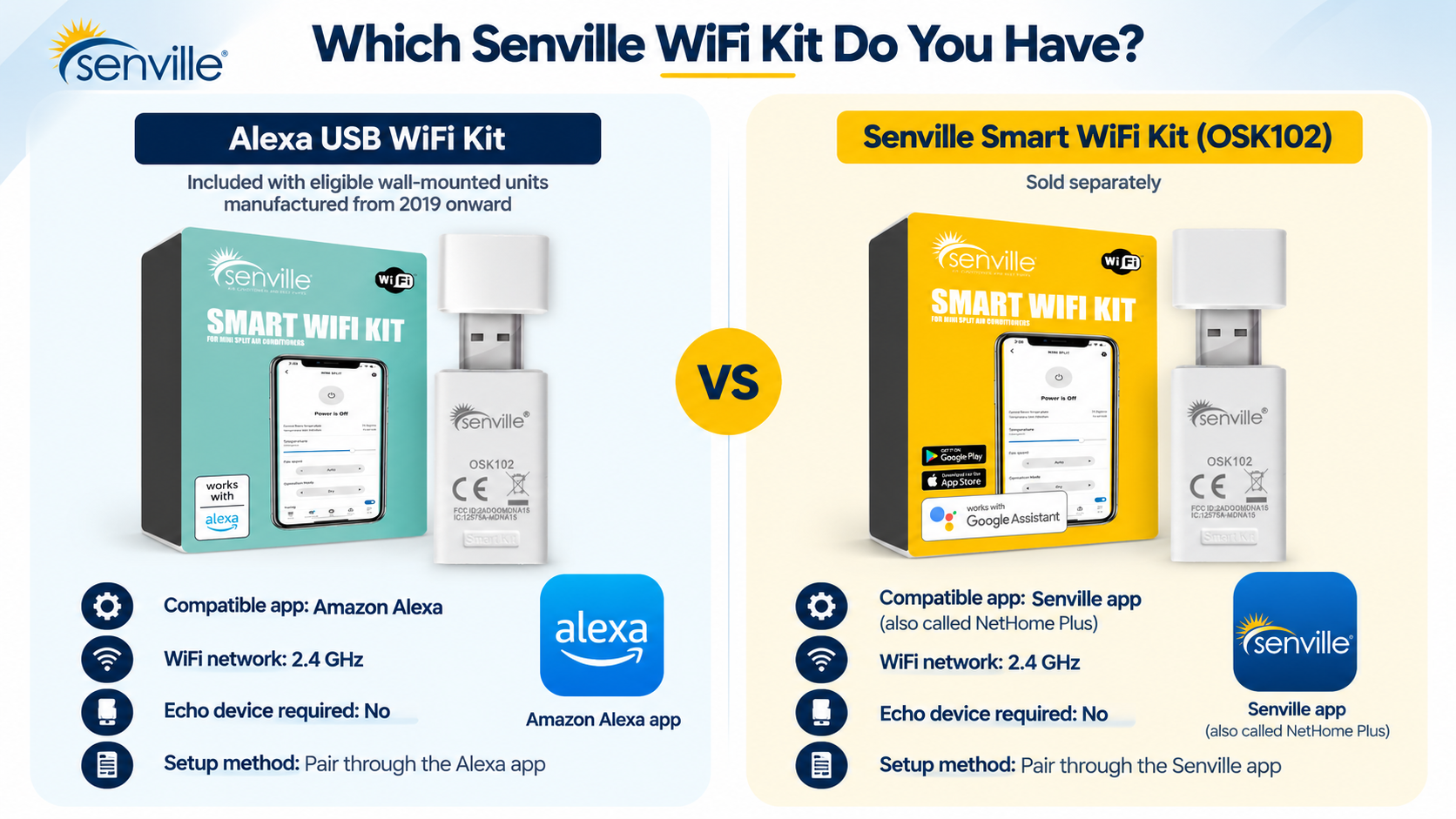
Before downloading an app or starting the pairing process, check which WiFi kit came with your mini split or which accessory you purchased.
Senville offers two main options.
Senville WiFi Kit Comparison
| Feature | Alexa USB WiFi Kit | Senville Smart WiFi Kit |
|---|---|---|
| Availability | Included with eligible wall-mounted units manufactured from 2019 onward | Sold separately |
| Compatible app | Amazon Alexa | Senville app (also called NetHome Plus) |
| WiFi network | 2.4 GHz | 2.4 GHz |
| Echo device required | No | No |
| Setup method | Pair through the Alexa app | Pair through the Senville app |
Important: These WiFi kits are not interchangeable. If your mini split came with the Alexa USB kit, it will not pair with the Senville app. To use the Senville app, you need the compatible Smart WiFi Kit.
If you're unsure which kit you have, check the accessory packaging and your indoor unit's documentation before continuing.
For more details, see our Senville WiFi Kit Setup Guide.
3. What You'll Need Before Getting Started
A few quick checks can make the Senville WiFi setup process easier.
Before connecting your mini split, make sure you have:
Why Does Senville WiFi Require 2.4 GHz?
Senville WiFi kits require a 2.4 GHz wireless network for setup.
Many home routers offer both 2.4 GHz and 5 GHz connections. Although your phone may work with either, the Senville WiFi kit will not pair through a 5 GHz-only network.
If your router uses the same network name for both bands, check its settings to make sure your phone can connect through 2.4 GHz during setup.
Setup Tip: Keep your phone connected to the correct WiFi network and have your password ready before entering pairing mode.
4. How to Set Up the Senville Smart WiFi Kit
If you purchased the Senville Smart WiFi Kit, follow these steps to connect your mini split using the Senville app.
Step 1: Install the WiFi Kit
Turn off your indoor unit using the remote.
Lift the front panel to locate the compatible USB connection, then insert the OSK102 WiFi kit firmly into its slot.
Make sure the kit is fully seated. Keep the QR code that came with your accessory somewhere accessible. You may need it during pairing.
Step 2: Download the Senville App
Download the Senville app from the Apple App Store or Google Play Store.
Open the app, create an account, and follow the email verification instructions. Once your account is ready, sign in to continue.
Step 3: Put Your Mini Split Into AP Mode
Turn on your mini split.
Within 10 seconds, press the LED DISPLAY or DO NOT DISTURB button on your remote seven times.
The indoor-unit display should show AP. AP stands for Access Point. It indicates that the system is ready for WiFi pairing.
Step 4: Add Your Mini Split in the App
Once AP mode appears, open the Senville app.
You have approximately eight minutes to complete the pairing process.
Select + Add Device, choose the appropriate unit type, and follow the prompts.
Depending on the setup process, you may be asked to scan the kit's QR code or enter your WiFi information manually.
Step 5: Complete the Connection
Follow the remaining instructions in the app until your mini split appears in the device list.
Once connected, you can begin using the supported WiFi controls. If your unit initially appears offline, try refreshing the device list or waiting a few minutes for the connection status to update.
Quick Tip: If pairing times out, return the unit to AP mode and restart the process.
5. How to Connect Your Senville Mini Split Using Amazon Alexa
If your wall-mounted mini split came with the Alexa USB WiFi kit, you'll use the Amazon Alexa app instead.
You don't need an Amazon Echo speaker to complete the setup.
Step 1: Download the Amazon Alexa App
Install the free Amazon Alexa app on your smartphone. Sign in to your Amazon account or create one if needed.
Step 2: Insert the Alexa USB Kit
With the indoor unit turned off, insert the included WiFi kit firmly into its designated slot.
The location depends on the series:
- LETO Series: Lift the front panel to access the USB connection.
- AURA Series: Locate the USB connection inside the display box.
Keep the included QR code or a photo of it for future reference.
Step 3: Activate AP Mode
Turn on the mini split. Press the LED button on your remote seven times until AP appears on the indoor-unit display.
Step 4: Add Your Mini Split in Alexa
Open the Amazon Alexa app and follow this path:
Devices → + → Add Device → Air Conditioner → Senville
Follow the on-screen instructions to connect your mini split to your 2.4 GHz WiFi network.
Step 5: Check Your Device
Once pairing is complete, look for your mini split in the Alexa device list.
Your unit may appear as Air Conditioner or Mini Split Heat Pump rather than under the Senville name. You can then explore the compatible controls available for your system.
For more details, visit the Senville Support Center and search for the Alexa WiFi setup instructions for your model.
6. What Is AP Mode on a Senville Mini Split?
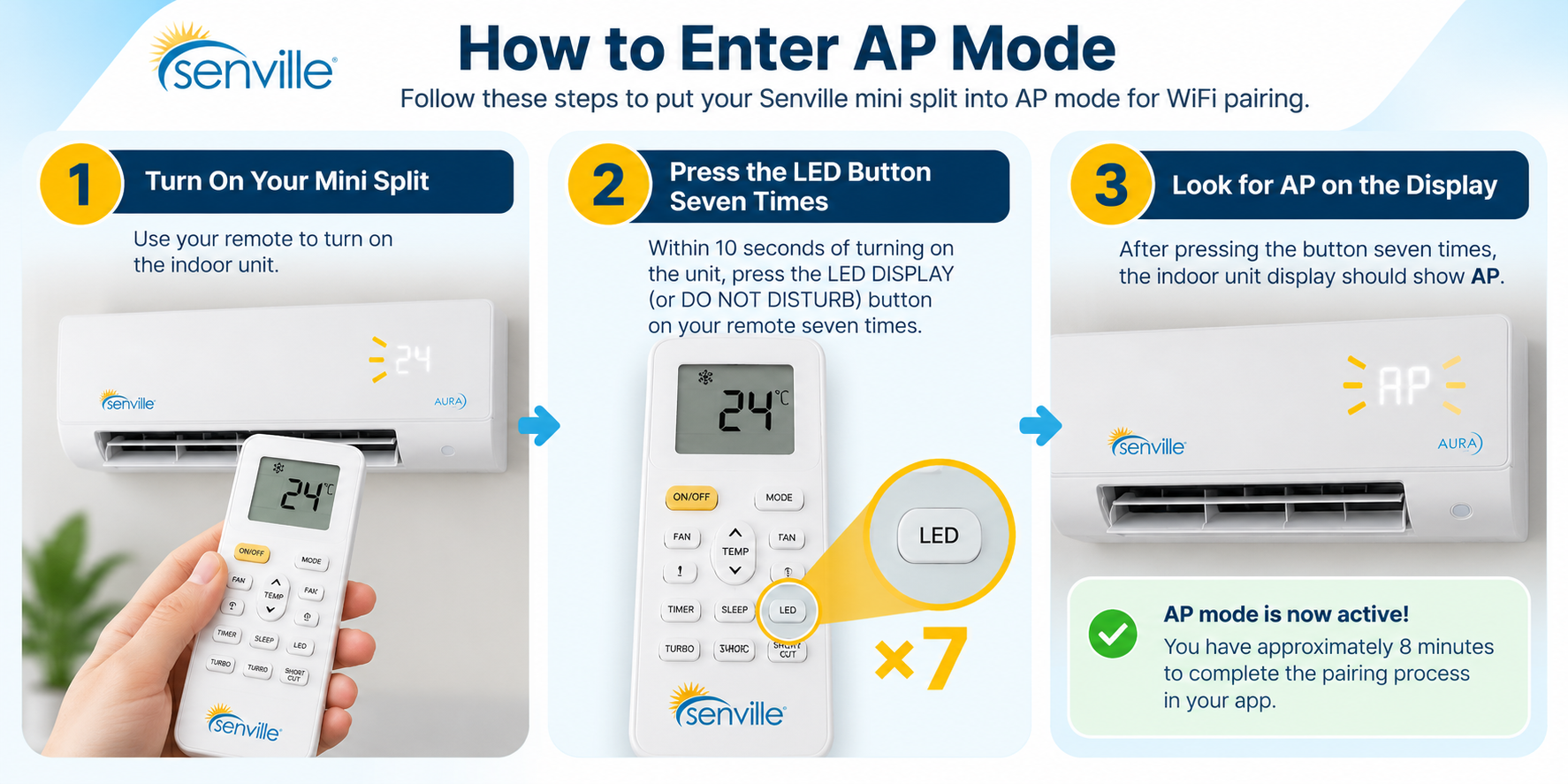
AP mode is the connection mode that allows your mini split to pair with the appropriate smartphone app.
When your indoor unit displays AP, it means the system is ready to begin the WiFi setup process.
For supported Senville models, you can activate AP mode by pressing the LED button on the remote seven times after turning the unit on.
What if AP Doesn't Appear?
If your mini split doesn't enter AP mode, check the following:
- Make sure you're pressing the correct button on the remote.
- Confirm the WiFi kit is fully inserted into its USB slot.
- Turn the unit off and carefully reseat the kit.
- Turn the unit back on and repeat the pairing steps.
If your unit beeps or repeatedly fails to enter pairing mode, the WiFi kit may not be fully seated.
Important: Always follow the pairing instructions for your specific indoor-unit model and WiFi kit. Button names and setup details can vary.
7. Senville WiFi Not Connecting? Common Problems and Solutions
Having trouble connecting your Senville mini split to WiFi? Most setup issues are worth checking against a few common causes before contacting support.
Senville WiFi Troubleshooting Guide
| Problem | What to Check |
|---|---|
| Mini split won't enter AP mode | Confirm the correct remote button and make sure the WiFi kit is fully inserted. |
| Unit beeps during setup | Turn the unit off and reseat the WiFi kit. |
| App cannot find the mini split | Confirm your phone is connected to a 2.4 GHz network. |
| Device won't pair with the app | Check that you're using the app designed for your WiFi kit. |
| Pairing process times out | Reactivate AP mode and start the setup again. |
| Mini split appears offline | Refresh the device list or wait a few minutes. |
| Some app functions are missing | Available controls vary by mini-split model. |
Problem 1: You're Using the Wrong App
This is one of the most important things to check.
The included Alexa USB kit works with Amazon Alexa, while the Smart WiFi Kit works with the Senville app.
If you're trying to pair the included Alexa kit through the Senville app, the connection won't work.
Problem 2: Your Phone Is Connected to 5 GHz WiFi
Check that your smartphone is using your home's 2.4 GHz network during setup.
If you're unsure how your router separates the two frequency bands, review your router settings or contact your internet service provider.
Problem 3: The WiFi Kit Isn't Fully Inserted
If the indoor unit beeps or won't enter AP mode, the USB accessory may not be fully seated.
Turn the unit off, remove the kit, and reinsert it firmly according to your model's instructions.
Problem 4: The App Needs to Be Refreshed
If your mini split appears offline immediately after pairing, refresh the device list and allow a few minutes for the connection to update.
If the problem continues, restart your phone and mini split, check for app updates, and repeat the setup process.
Still Having Trouble? Visit our Senville Support Center for additional troubleshooting resources.
8. Can Multi-Zone, Ceiling Cassette, and Concealed Ducted Units Use WiFi?
Yes. WiFi control isn't limited to standard wall-mounted mini splits.
Compatible Senville ceiling cassette, concealed ducted, and floor/ceiling indoor units can also use WiFi accessories.
However, these units have different installation requirements.
What Accessories Are Required?
Each compatible cassette, concealed ducted, or floor/ceiling indoor unit requires:
- One SENV-SP23 adapter
- One compatible Senville WiFi kit
The SENV-SP23 adapter connects to the indoor unit's control board. Because this involves electrical components, installation should be completed by a qualified HVAC technician.
Unlike eligible wall-mounted units, these indoor-unit styles do not include a WiFi kit as standard.
What About Multi-Zone Systems?
If your multi-zone system has several compatible indoor units, each unit that you want to connect through WiFi needs its own required accessories.
For example, if you have three indoor units and want WiFi control for all three, you'll need to confirm the appropriate WiFi kit and adapter requirements for each one.
Important: WiFi control does not change the operating-mode limitations of a multi-zone system. Indoor units connected to the same outdoor condenser must still follow the system's shared heating or cooling mode requirements.
For additional compatibility information, read our WiFi Guide for Ceiling Cassette, Concealed Ducted, and Floor Units.
9. Tips for Getting the Most Out of Your Senville WiFi Controls
Once your mini split is connected, there are a few simple ways to make WiFi control more convenient.
Give Each Indoor Unit a Clear Name
If you have multiple connected mini splits, use recognizable room names where supported by your app.
For example, naming your units Living Room, Bedroom, and Home Office can make them easier to identify.
Get Familiar With Your Available Settings
Explore the heating, cooling, temperature, and fan controls available in your app.
Some features, such as ECO, Swing, or Turbo, depend on the specific model and may not be available through WiFi control.
Keep Your App Updated
Check periodically for app updates to help maintain compatibility and access to available features.
Keep Your Remote Handy
Your physical remote is still useful for everyday operation, troubleshooting, and accessing settings that may not be supported by the app.
Check Your Connection After Network Changes
If you change your router, WiFi password, or network configuration, you may need to reconnect your mini split using the setup process.
Comfort Tip: WiFi control can make everyday adjustments more convenient, but your mini split should still be operated according to its model-specific instructions.
10. Frequently Asked Questions About Senville WiFi Setup
Stay Connected to Your Comfort With Senville
Connecting your Senville mini split to WiFi is a convenient way to manage your home's heating and cooling settings from your smartphone.
The most important part of getting started is choosing the correct setup process for your WiFi kit.
Whether you're using the included Alexa USB kit or the separately purchased Smart WiFi Kit, following the right instructions can help make the connection process easier.
And if you run into a problem, we're here to help.
Need Help With Your Senville WiFi Setup?
Find setup instructions, compatibility information, and troubleshooting resources in our support centre.
Visit Senville Support →You can also explore our Senville Mini Split Systems to learn more about our heating and cooling options.